Amusing wannabe

Looking at today’s security run output that FreeBSD likes to send to me by default, I find an interesting hack run amongst the several I usually get a day:

Nov 27 14:03:16 [anonymised] sshd[48794]: Invalid user ryback from 218.1.65.241
Nov 27 14:03:49 [anonymised] sshd[48810]: Invalid user ryback from 218.1.65.241
Nov 27 14:04:44 [anonymised] sshd[48844]: Invalid user ryback from 218.1.65.241
Nov 27 14:07:41 [anonymised] sshd[48979]: Invalid user ryback from 218.1.65.241

The script kiddie in question is trying to use the username ryback to get into my machine. Casey Ryback, of course, is Steven Seagal’s ex-Navy SEAL character in the Under Siege series, kicking large amounts of terrorist arse with kung-fu, knives and in Under Siege 2 a Newton MessagePad. This “ryback”, however, is just hitting against a sshd which has password access disabled completely and as such will have no success whatsoever to anyone who doesn’t have my private key – that is, everyone but me.

The IP address is in (sigh) China Telecom space, Shanghai province; no chance of tracing that then. Wonder where they got the name from.

Idiots at the BBC

This news article on a recent parenting case is alright in itself, but falls apart in two respects.

The only weblinks it provides in the related links section are to “father’s rights” organisations, one of which is the infamously horrible Fathers 4 Justice, a bunch of people whose favoured tactics for gaining support were dressing up as superheroes and scaling public buildings, performing occasional security breach stunts and committing serious vandalism on family court offices. (As an aside, I don’t link to their Wikipedia article here as I usually would do because it’s very very poor. Even for Wikipedia. You have been warned.) This should at least be balanced by a link to someone who’ll actually tell the truth rather than just ill-informedly rant. They’re also given far too much time in the article itself.

Worse, the “Have Your Say” boxout, giving a sample of the latest drivel from the BBC’s should-have-been-shut-down-years-ago comments section, currently has a quote from a “Jon” interspersed with the actual article:

So I presume the mother will expect the state to be paying for the childs upkeep, instead of the father!

The article itself, however, points out that

[The woman] said she wanted the baby girl, who is now 19 weeks old, adopted at birth without the knowledge of either them or her father.

So no, Jon, she bloody well doesn’t, you presume wrong, you’re a woman-hating berk who believes all that Fathers 4 Illiteracy tell you about the family courts system and whoever picked that entirely wrong quote out from the Have Your Say Fascist Wannabe Comments Pile should really think about what bias actually means the next time they do such a thing; the place where the comment quote is positioned makes it look a lot like an actual quote from the story, which is way wrong.

Besides, it’s worth pointing out the context of the story: the woman is an adult. She lives on her own. Why should a court anywhere in Britain even consider forcing her to tell her parents (which is how it got to the Appeal Court for this ruling), which we can assume from the context to be something that would cause a massive amount of embarrassment or possibly serious repercussions? That they would decide to do so is in itself worrying; this appeals decision, on the other hand, is probably the right one for everyone involved, hence why the F4J crowd think it’s wrong. Still, can’t win ’em all.

Edit 26/11/2007: Also note this much better Guardian article, with the detail that the idiot local authority actually wrote to the woman’s parents by mistake and without half the article taken up by comments from pressure groups.

Guess who’s partly responsible for the child benefit cockup?

EDS, that’s who: who would charge the child benefit people £5000 for a SQL job of the sort that would take a couple of minutes, thus resulting in a civil servant using an old dump with all the data intact, burning it to CDs and then unfortunately ending up with another stupid outsourcing partner (that is, TNT) losing them. Oh, what a surprise. It’s not like EDS haven’t ripped any British government agencies off before… (They even have occasional problems doing corporate IT outsourcing properly.) This failure is exactly the reason why no government IT services should be outsourced under any circumstances: good practice is swamped under charges and contracts.

Unity at Ministry of Truth has the best analysis of the details of the emails so far. Also, b3ta have by far the funniest comment on the issue. Probably more to come.

Truth through Wikipedia

Here’s Labour’s criticism of the Tory “build lots of unnecessary but ideologically-correct ‘independent’ state schools” policy, as seen regularly on News 24 today:

[Lord Andrew] Adonis claimed the Tories were merely copying Labour policy…

[“Tory plan to make schools follow academy model“, Education Guardian, 19th November 2007]

Look up Wikipedia for “City Academy“, however, and

The city academy programme was originally based on the programme of City Technology Colleges (CTCs) created by the Conservative government in the 1980s, which were also business-sponsored.

City Academies were a rebranding of a Tory policy, and as such Labour should really be very careful in criticising on this area. They aren’t, of course; fools.

The rumour mill: Nintendo may not be your friend

This might not be true and I have no way of checking since I don’t need a Wii, but apparently Amazon France and Germany have stopped selling said consoles to the UK (but will allow shipping of other consoles, even the PS3). The source is the Wii thread on the DVD Forums. Since there aren’t any Wiis in the UK but there are in France and Germany, and since we’re meant to have a single market, can one see the problem with this?

Obviously if it’s not true and just Amazon deciding not to sell electronics beyond their local store then this won’t be a problem, but if Nintendo has threatened Amazon into stopping shipping then they’re just as bad as SCEE (who of course threatened Lik-Sang out of business, amongst other things, for selling PSPs at a fair price.) Worrying.

(K)Ubuntu and the Belkin F5D7051: a saga

My laptop is a first-generation Centrino machine. Perfectly acceptable speed-wise for pretty much anything that doesn’t involve 3D (and even then, a GeForceFX 5200 isn’t that dreadful), and comes with Intel 802.11b.

802.11b wireless has gone a bit out of date. It’s still perfectly acceptable, but I found myself whilst on holiday requiring a wireless stick I could stick in odd places where my laptop wouldn’t go, so I bought a Belkin F5D7051 “High-Speed Wireless G” USB stick out of the best priced place I could find. It comes with a little extension that’s perfect for sticking out of hotel windows to pick up public signals, so it was surprisingly useful.

Unfortunately, it’s based on a Broadcom chipset. And Broadcom chipsets are a real pain on Linux because Broadcom won’t make drivers for anything other than embedded systems. I dual-boot the machine with XP in any case, but I like to have a Linux partition around and I’d like it to have access to the Internet.

So if you want such a thing to be able to run on Linux, you have to use a piece of software called ndiswrapper. This is a bit of software that maps the Windows NDIS standard for network drivers on to the Linux networking subsystem, effectively using your Windows network driver on Linux. Unfortunately, for obvious reasons ndiswrapper can be a bit of a pain to work with on some cards and the Belkin F5D7051 is one of these cases.

It has taken me a long time to find a Linux distribution combination that gets it working. But with Kubuntu ‘Gutsy’ 7.10 and some helpful threads on the Ubuntu forums, I finally have it:
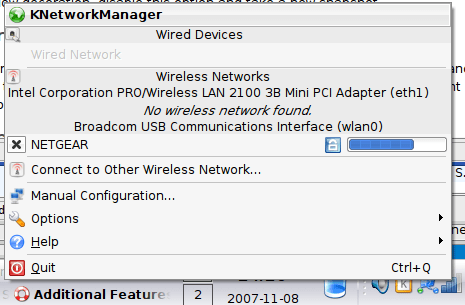
Linux networking - KNetworkManager screenshot

As you can see, it’s even working with WPA and Network Manager, pretty much perfectly. Since I’m always inclined towards tutorials, here’s how I did it.

I stumbled across an extremely helpful person on the Ubuntu forums who posted a bit of software that automates the compilation of ndiswrapper and a guide on how to use it. I’ve used ndiswrapper from the Ubuntu repositories before (as well as from the repositories of pretty much every major Linux distribution) and always run into trouble and never had the card working.

While it’s actually designed for Feisty (the previous version, 7.04), is covered in warnings and is not intended for my type of wireless card, the autodownloader and compiler for ndiswrapper within is still extremely useful. Of course, fetching ndiswrapper from the Ubuntu repo might just work for you, and if you want to give it a try just install it from there and skip to step 8.

  1. Connect to the Internet using a different method to your Broadcom card; by wire/Intel built-in wireless/whatever.
  2. Irritatingly, xterm is not included in the default configuration of kubuntu; this script requires it. To get it, open Adept Manager (K-menu, Utilities, Adept Manager), Synaptic, or your Ubuntu variant’s favourite package manager, search for ‘xterm’ and install it. You can also do so from the command line:
    sudo apt-get install xterm
  3. Go to the forum thread.
  4. Download and start the “internet” (online) version of the script only, whilst in X and not as root, through a Konsole/xterm/gnome-terminal/favoured terminal emulator:
    cd /tmp
    wget http://blakecmartin.googlepages.com/bcm43xx-0.3.2-internet.tar.gz
    tar xvfz bcm43xx-*.gz
    cd bcm43*
    ./installer.py
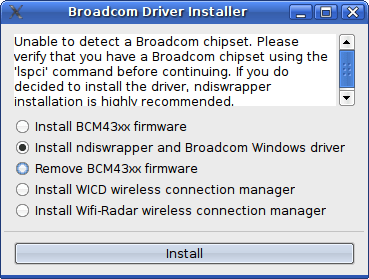
  5. Now, the following window should appear:Linux networking - Broadcom installer
  6. Select to “install ndiswrapper and Broadcom Windows driver”. If you have the BCM43xx it mentions here, this should work straight off. Else, you’ll just have to clean up after itself. It’ll sudo out, fetch the Linux kernel developer tools if you don’t already have them and then use them to download and compile ndiswrapper from source.
  7. For my Belkin, the Broadcom drivers it downloads and installs are the wrong ones. To remove the wrong one, go to your terminal and type:
    sudo ndiswrapper -r bcmwl5
  8. The right ones are contained either on your original CD-ROM or downloaded off Belkin’s website; the XP drivers download as an .exe file.
  9. To extract the driver from the EXE file, navigate to the location where it is, right-click and select “Open With”. Open it in ark or your favoured archiver; ark will ask which type of file to treat it as, which should be “Archive Zip”. You can then extract the files needed to a temporary directory, which are bcm43xx.cat, bcmrndis.inf, f5d7051.dll, rndismpk.sys and usb8023k.sys.
  10. Unfortunately, these files extract all in capital letters, and this causes a failure because Linux’s file system is case sensitive. So you’ve got to rename them all before issuing the installation command to ndiswrapper.
    mv BCM43XX.CAT bcm43xx.cat
    mv BCMRNDIS.INF bcmrndis.inf
    mv RNDISMPK.SYS rndismpk.sys
    mv USB8023K.SYS usb8023k.sys
    mv F5D7051.DLL f5d7051.dll
    sudo ndiswrapper -i bcmrndis.inf
  11. Now go over to ndiswrapper’s directory and see if it’s working:
    cd /etc/ndiswrapper/bcmrndis
    ls

    The directory listing should be:

    050D:7051.F.conf  bcm43xx.cat   f5d7051.dll   usb8023k.sys
    1799:7051.F.conf  bcmrndis.inf  rndismpk.sys
  12. Ask ndiswrapper what drivers there are with a ‘ndiswrapper -l’ command, which should produce something like this:
    bcmrndis : driver installed
            device (050D:7051) present (alternate driver: rt2500usb)
  13. Unfortunately Linux’s driver for a Realtek chipset thinks this is one of theirs, as pointed out by the ‘alternate driver’ bit there – the other USB Belkin stick in the same category, the F5D7050, is based on the RT2500.
  14. So you need to tell Linux not to load the driver for the RT2500, which you do by editing the blacklist as root – ‘sudo kate /etc/modprobe.d/blacklist’ (replace kate with gedit for GNOME people, or whatever editor you prefer. I used vi) and add the following line to the end:
    blacklist rt2500usb
  15. Reboot your machine so it loads the ndiswrapper module at the right point.

If all’s well, when you boot your NetworkManager will be scanning your Belkin stick as well. You can make sure, again, from the command line: if you type in ‘iwconfig’ and see listed amongst the networks listed ‘wlan0’, it’s working.

And they say Linux isn’t ready for the desktop. Unfortunately, they’re right, but in this case that’s Broadcom’s fault for not releasing the Linux drivers we know they actually have. Nevertheless, it’s still at the Windows 3.1 level of hardware configuration and when compared to Vista’s effective Windows Update driver search or Mac OS X’s “plug it in, it works” philosophy it’s getting a bit lacking. Still, if NetworkManager is any example hopefully it’ll improve over time.

Thanks go to Google for the information (and if you want to learn more, I highly recommend googling on F5D7051 Linux or similar and reading all the stuff that comes up) and I hope this is of some use to you.

Sense in the mobile industry?

3’s SkypePhone: £49 to buy, top up the phone (minimum £10) and you get a month’s free Skype-to-Skype calls and messages. The phone appears to have a surprisingly decent talk time too, and according to the specs sheet has Bluetooth A2DP for wireless stereo headsets (sadly, however, it’s only dual-band on GSM). Shame the 3 network has a bit of a reputation, otherwise I’d actually consider porting over from O2. Still, an interesting concept and one hopefully that other mobile operators will learn from.

Poor “wi-fi security” BBC News article

Not entirely accurate:

More holes have been picked in the security measure designed to protect the privacy and data of wi-fi users.

Of course, when you actually read the article, it turns out to be yet another attack on WEP.

WEP is not the security measure. WEP is a security measure, and it’s an extremely poor one. WPA, which is on pretty much every ADSL router that people in the UK actually own because it’s been around for about as long as WEP’s been useless, is the security measure that people should be using, but this article only actually mentions that close to the end and then adds a bunch of confusion about WPA2.

It’s also incorrect on operating systems: since Windows 2000, for example, has no native wireless support, everything depends on the driver. Therefore the Ralink-chipset PCI card my brother uses on his Win2K-running room PC can connect to the home WPA network with absolutely no difficulty.

If you have Windows XP, you can update to SP2 unless it’s a pirate copy; and even then, you should be able to find a mate with a copy that will. If you have Vista, Linux or a Mac running recent OS X there’s no difficulty with WPA or WPA2. And the only current, mainstream device I can think of which isn’t WPA by default is the Nintendo DS; the 360 through its wireless adapter, the PSP (above firmware 2.0, which you’ll have had to update to play any games anyway), PS3 and Wii all support it fine. And yet the guy from BT who they question says:

A spokesman for BT said that it used WEP on its home hub products because of the compatibility issues.

“We use WEP for a very sensible reason,” said the spokesman, “there are a number of devices out there in the marketplace that do not use WPA.”

So why not supply it WPA as default (as Sky and Be Unlimited do) and then tell people in the manual or on an information sheet how to scale it down using an Ethernet cable and a web browser if they actually have some of the ancient crap they worry about? By supplying WEP you are supplying a product that is broken and gives a false sense of security – WEP is about as secure as covering a broken window with tin foil.

A better way to go about this from a consumer protection point of view would be an article talking about how WPA improves your security, how to put it on and at the end say that if there’s any difficulty with it, update your devices and if that doesn’t work, WEP might have to be your least worst option if you can’t put an Ethernet cable out to them. At least the ISPs have stopped supplying routers which default to unencrypted now, but there’s still a long way to go and articles like this one are not helping.

The horror, the horror

Summary: I look at certain slightly connected horror films on near-enough current release – Rob Zombie’s Halloween, Grind House and Black Sheep – and discuss where Hollywood has lost its way and how it could fix it. I also give reasons why I don’t like Rob Zombie’s Halloween. A lot of them. Very few spoilers – I try to keep it to a low amount – but the article is very long, and so there’s a page break coming up now.

Continue reading “The horror, the horror”

Harassment kills a fantastic blogger

Read this.

I genuinely fear for her safety at the hands of this person (I will refrain from calling someone who picks on children ‘a man’). Three days running he has posted blog entries about her, two of which assume her identity and one of which is attempting to gain money in her name. I do not know where he would stop. Therefore the only way to make her safe is to remove us from his presence.

Get angry.

Left Brain/Right Brain was one of the best autism blogs on the net, unafraid to bash those who credulously exploit autistic spectrum disorders to sell quack cures or promote vaccination scares. Fore Sam/John Best, on the other hand, is an absolute asshole. Losing LB/RB is a loss for everyone and it will be missed.